Daytab guide / Back Tap & Action Button
Put logging one gesture away.
Connect a Daytab shortcut to Back Tap, the Action Button, Siri or a Home Screen icon. Choose a saved preset for regular purchases, or review an expense when the amount changes.
Setup required · Device support varies · Reviewed capture requires iOS 26 or later
Get Daytab for iPhoneFree to download · Optional Daytab Pro
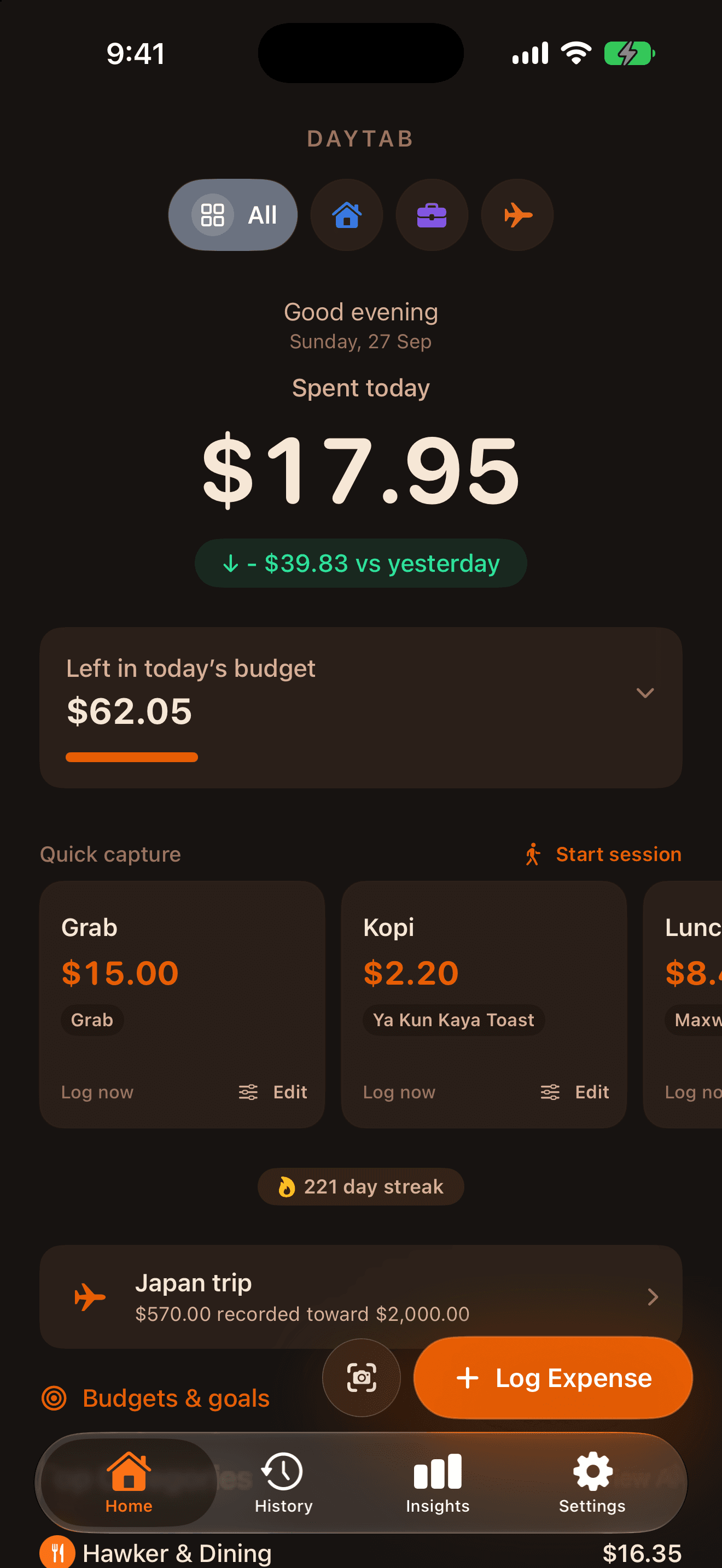
Choose what the gesture should do.
A preset logs a saved purchase: the same amount, category and details each time. Daytab’s Log Expense action saves the values supplied by a shortcut. Log Expense with Review asks for details and shows a native card before you save; it requires iOS 26 or later and authentication.
These are different flows. Assign the one you actually want, and run it once in Shortcuts before attaching a trigger. Test with a small expense, check History and remove the test afterwards.
Save the reviewed shortcut from Daytab.
Use the template bundled with Daytab 1.3 for an amount that changes. It already asks for amount and category. On older iOS versions, create a shortcut with Daytab’s available Log Expense action instead; the review card is not available.
- In Daytab, open Settings → Shortcuts & Automation.
- On iOS 26 or later, find Log without opening Daytab and tap Save Shortcut.
- Save and open the shortcut file in Apple Shortcuts, then add it to your shortcuts.
- Run it once, enter a test amount, review the card and save. Check that the expense appears in Daytab History.
Assign it to Back Tap.
Back Tap can run a shortcut with a double or triple tap on the back of a supported iPhone. Choose the gesture that is least likely to trigger accidentally.
- Open iPhone Settings → Accessibility → Touch → Back Tap.
- Choose Double Tap or Triple Tap.
- Scroll to the shortcuts and select your Daytab shortcut.
- Try the gesture and complete any unlock or confirmation prompt.
Give it a Home Screen icon.
A visible icon is useful when you prefer a deliberate tap to a physical gesture. Siri can also run a shortcut by its name.
- Open your shortcut for editing in Apple Shortcuts.
- Open the shortcut’s Details and choose Add to Home Screen.
- Choose a name and icon, then tap Add.
- Tap the icon to test the flow. For Siri, use the name you gave the shortcut.
Reach it from the Lock Screen.
On iOS 18 or later, you can customise Lock Screen controls. In the control picker, use an available Daytab control or a Shortcuts control configured with your chosen shortcut. Daytab’s Log Expense control opens the app; a Shortcuts control runs the shortcut you select. The available controls depend on your device and iOS version.
Unlock your iPhone, touch and hold the Lock Screen, choose Customize → Lock Screen, then replace a bottom control using the control picker. Test the result before relying on it.
Launching a shortcut without first opening Daytab is different from bypassing the lock. Log Expense with Review requires authentication, and iOS may ask you to unlock for other actions. Add in a Spending Session opens the app’s expense screen.
Wallet automation: check the inputs first.
A personal automation can pass supported purchase details to Daytab’s Log Wallet Transaction action. It does not give Daytab a bank connection. Available fields depend on iOS, payment card and region; do not assume an amount is supplied.
In Shortcuts → Automation, choose the supported transaction trigger, add Daytab’s action and map only the fields Apple actually provides. If a usable amount is missing, ask for it or use the reviewed shortcut. Check the first result in History before enabling unattended saving.
If it isn’t behaving as expected.
Update Daytab, open it once, then test the shortcut directly in Apple Shortcuts. Confirm you chose the intended action and supplied its required values. Review any permission or unlock request.
Keep one trigger during setup to avoid confusion. A preset always uses its saved amount; a variable purchase needs a prompted or reviewed amount. You can edit or delete a test entry in History.